

 Topiry



Top Photo Editing Software Compared: Which One Should You Choose?
Choosing photo editing software is less about finding the “best” program and more about finding the right one for how you actually shoot and edit. A wedding photographer processing thousands of RAW files has completely different needs than a hobbyist retouching portraits for Instagram. In this guide, we compare the leading photo editors on the market today, break down what each one does best, and help you land on the right choice for your workflow and budget.
What to Look for in Photo Editing Software
Before comparing specific programs, it helps to know which criteria actually matter. Not every feature applies to every user, so weigh these based on your own priorities.
- RAW processing quality: How well does the software handle RAW files from your specific camera, including noise reduction and dynamic range recovery?
- Non-destructive editing: Can you go back and adjust earlier edits without degrading the image or starting over?
- Organization tools: If you shoot in volume, cataloging, tagging, and searching through thousands of images matters enormously.
- Retouching depth: Layers, masks, frequency separation, and healing tools matter most for portrait and product photographers.
- Speed and hardware demands: Some programs are notoriously heavy on system resources, which matters if you’re working on a laptop.
- Pricing model: One-time purchase versus subscription can make a significant difference over a few years of use.
The Leading Photo Editors, Compared
Adobe Photoshop
Photoshop remains the industry standard for pixel-level editing, compositing, and advanced retouching. Its layer-based workflow, extensive selection tools, and enormous plugin ecosystem make it the go-to choice for professional retouchers, digital artists, and anyone doing complex composite work. The learning curve is real, though — Photoshop rewards patience far more than it rewards intuition.
Adobe Lightroom
Lightroom is built specifically around photographers who shoot in volume. Its catalog system lets you organize, tag, and search through massive photo libraries, while its non-destructive editing panel handles exposure, color grading, and lens corrections with remarkable speed. Many professionals use Lightroom for 90% of their workflow and only open Photoshop for the small percentage of images that need detailed retouching.
Affinity Photo
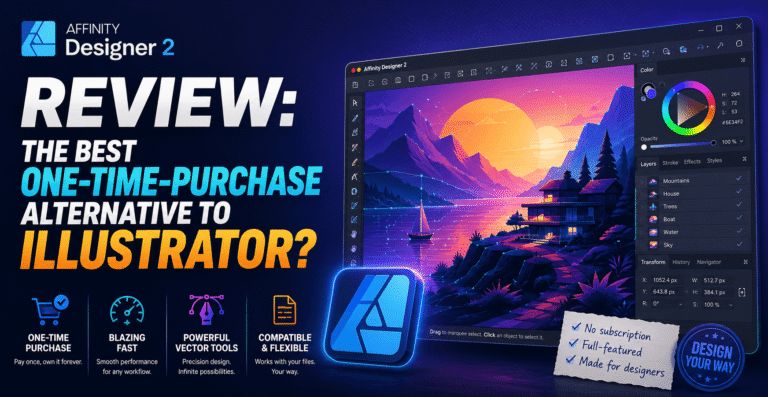
Affinity Photo has built a loyal following by offering a Photoshop-caliber toolset with a one-time purchase instead of a subscription. It supports layers, advanced masking, and RAW processing, and its performance is generally snappier than Photoshop on comparable hardware. The plugin ecosystem is smaller, but for most users, that’s rarely a dealbreaker.
Capture One
Popular among studio and fashion photographers, Capture One is often praised for producing the most accurate and flattering color and skin tone rendering straight out of RAW conversion. Its tethering capabilities — shooting directly into the software from a connected camera — are considered best-in-class, making it a favorite for studio and commercial shoots.
Luminar Neo
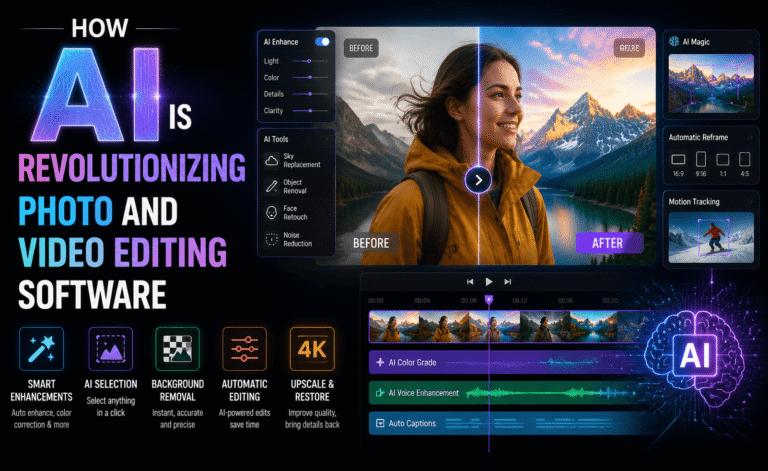
Luminar Neo leans heavily into AI-assisted editing, offering one-click sky replacement, portrait enhancement, and relighting tools that would take significant manual effort in other programs. It’s an excellent choice for photographers who want striking results quickly, though professionals doing highly custom retouching may find its AI tools occasionally too aggressive or generalized.
GIMP
GIMP is the most capable free and open-source option available, offering layers, masks, and a plugin system that can extend its functionality significantly. It doesn’t match Photoshop’s polish or speed, and its interface takes real getting used to, but for anyone unwilling or unable to pay for software, it remains a genuinely powerful tool.
| Software | Best For | Pricing Model | Standout Strength |
|---|---|---|---|
| Photoshop | Compositing & deep retouching | Subscription | Unmatched flexibility |
| Lightroom | High-volume photo organization | Subscription | Fast, non-destructive workflow |
| Affinity Photo | Budget-conscious professionals | One-time purchase | No subscription required |
| Capture One | Studio & fashion photography | Subscription or one-time | Best-in-class color accuracy |
| Luminar Neo | Fast AI-assisted edits | Subscription or one-time | One-click AI enhancements |
| GIMP | Free, open-source editing | Free | No cost, fully extensible |
Matching Software to Your Type of Photography
Portrait and wedding photographers typically benefit most from a Lightroom + Photoshop combination — Lightroom for culling and bulk edits across hundreds of images, Photoshop for the handful that need detailed retouching.
Product and studio photographers often lean toward Capture One for its tethering and color science, especially in commercial environments where color accuracy directly affects client approval.
Hobbyists and social media creators frequently find that Luminar Neo or Affinity Photo cover everything they need without the ongoing cost of a subscription.
Landscape and travel photographers tend to value Lightroom’s organization tools alongside Luminar Neo’s sky and atmosphere enhancement features, since both speed up processing large batches of outdoor shots.
The right software isn’t the one with the most features — it’s the one that disappears into your workflow instead of interrupting it.
Subscription vs. One-Time Purchase: Which Makes More Sense?
This is one of the most debated topics among photographers, and the honest answer depends on how you use the software. Subscriptions like Photoshop and Lightroom guarantee continuous updates, new AI features, and cloud storage integration, but the ongoing cost adds up significantly over several years.
One-time purchase software like Affinity Photo can save real money long-term, but major version upgrades sometimes require an additional (smaller) purchase, and you may not get access to the newest AI features as quickly as subscription-based competitors.
If you’re a professional relying on software daily for client work, the subscription model’s continuous support and integration often justifies the cost. If you’re editing occasionally or working on a tighter budget, a one-time purchase tool will likely serve you just as well for a fraction of the long-term cost.
RAW vs. JPEG Editing Considerations
The file format you shoot in significantly changes how much any of this software can actually do for you. RAW files capture far more tonal and color information than JPEGs, which means programs like Lightroom, Capture One, and Affinity Photo have dramatically more room to recover shadow detail, pull back blown highlights, and adjust white balance after the fact without introducing visible artifacts.
JPEGs, by contrast, have already been processed and compressed in-camera, discarding a large amount of that original information. Editing a JPEG still works fine for basic adjustments — cropping, minor exposure tweaks, sharpening — but pushing it too far, particularly in shadows or highlights, tends to reveal banding, color shifts, or noise far more quickly than a RAW file would under the same adjustments.
If your camera supports RAW capture and storage space isn’t a major constraint, shooting RAW gives every piece of software on this list significantly more to work with. That said, RAW files require more processing time and storage, and for casual shooting or quick social posts, JPEG remains a perfectly reasonable choice — just know that the ceiling for correction is considerably lower.
Mobile Photo Editing Apps Worth Mentioning
While this guide focuses primarily on desktop software, it’s worth acknowledging how capable mobile editing has become. Lightroom’s mobile app mirrors much of its desktop counterpart’s non-destructive editing panel and syncs seamlessly across devices through Adobe’s cloud, making it genuinely usable for professional workflows on the go, not just casual touch-ups.
Snapseed remains one of the most capable free mobile editors available, offering selective adjustment tools, curves, and healing brushes that go well beyond typical filter-based apps. VSCO has built a strong following among creators who prioritize a distinctive, consistent aesthetic across their social feeds, offering film-inspired presets alongside more traditional manual controls.
For photographers who shoot primarily on their phone, or who want to do quick edits between desktop sessions, pairing a strong mobile app with your primary desktop software rather than treating them as competitors tends to produce the smoothest overall workflow — culling and rough edits on the go, detailed work back at your main machine.
Building a Sustainable Editing Habit
Regardless of which software you settle on, the tool matters less over time than the habits you build around it. Photographers who consistently produce strong, cohesive galleries tend to develop a personal preset or starting-point workflow — a baseline set of adjustments they apply first, then refine per image — rather than approaching every photo as a blank slate. This not only speeds up editing significantly but also helps create a recognizable visual consistency across a portfolio or client gallery.
It’s also worth periodically revisiting software you dismissed early on. Photo editors update frequently, and features that felt clunky or missing a year or two ago may have improved substantially. Many photographers who initially chose a program based on price alone eventually switch, or add a second tool to their workflow, once their needs become more specific — a landscape shooter picking up masking-heavy retouching work, for instance, might find themselves reaching for Photoshop occasionally even if Lightroom remains their primary tool.
Final Thoughts
There’s no single “best” photo editing software — only the best software for your specific type of photography, budget, and workflow. Professionals doing heavy retouching and compositing will likely always gravitate toward Photoshop, while high-volume shooters benefit enormously from Lightroom’s organizational strengths. Meanwhile, Affinity Photo and Luminar Neo continue to prove that you don’t need a subscription to get professional-grade results. Try the free trials of two or three programs from this list before committing — your editing style will tell you which one fits far better than any spec sheet can.
About the Author