

 Topiry

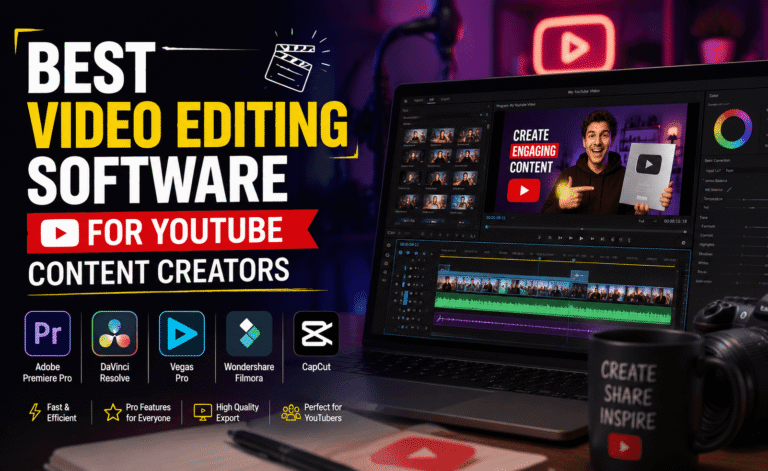
Adobe Premiere Pro vs DaVinci Resolve: The Ultimate Comparison
Premiere Pro and DaVinci Resolve are the two most talked-about names in video editing — and for good reason. Both are used on real professional productions, both offer free trial or free-tier access, and both have passionate communities that will happily argue for hours about which one is objectively better. The truth is more nuanced: each program has genuine strengths, and the right choice depends heavily on the kind of work you do.
This comparison breaks down both editors across the categories that actually matter — workflow, color grading, audio tools, performance, collaboration, and price — so you can decide with confidence instead of just following whichever YouTuber you watched most recently.
Origins and Philosophy
Premiere Pro grew out of Adobe’s broader Creative Cloud ecosystem, designed to integrate tightly with After Effects, Photoshop, and Audition. Its philosophy is built around flexibility and interoperability — if your workflow touches multiple types of media (motion graphics, photo assets, audio design), Premiere is built to move between those tools with minimal friction.
DaVinci Resolve, developed by Blackmagic Design, grew out of color-grading software and expanded into a full editing suite. Its philosophy centers on keeping the entire post-production pipeline — editing, color, audio, and visual effects — inside a single application. Instead of switching programs, you switch “pages” within Resolve itself.
Editing Workflow and Interface
Premiere Pro’s interface will feel immediately familiar if you’ve used other Adobe products — panels, a single unified timeline, and drag-and-drop simplicity that beginners can pick up within a day or two. Its timeline handles multi-cam editing, nested sequences, and complex multi-track projects smoothly, and keyboard shortcuts are extensively customizable.
DaVinci Resolve’s Edit page is similarly timeline-based and, in isolation, arguably just as intuitive. Where Resolve gets more demanding is in navigating between its distinct pages for color, audio, and effects work — beginners sometimes find themselves unsure which “page” they should be working in for a given task. Once that structure clicks, though, many editors find it more logical than jumping between separate applications.
Color Grading
This category isn’t close. DaVinci Resolve’s Color page is the industry benchmark for color grading, offering node-based color correction, advanced HDR grading tools, and scopes that rival dedicated color-grading-only software. It’s genuinely used on feature films and high-end commercial productions specifically for this reason.
Premiere Pro’s Lumetri Color panel is capable and continues to improve, offering solid color wheels, curves, and HSL controls that cover the needs of most YouTube, corporate, and social media projects. But for advanced, cinema-grade color work, editors frequently export to Resolve or DaVinci’s standalone color tools rather than finishing entirely inside Premiere.
Audio Tools
DaVinci Resolve includes Fairlight, a full digital audio workstation built directly into the software. For editors who need to do serious sound design, multi-track mixing, or noise reduction without leaving their editing program, Fairlight is a genuinely powerful and often underrated inclusion.
Premiere Pro integrates closely with Adobe Audition, which offers similarly deep audio tools — but as a separate application. For quick audio cleanup, Premiere’s built-in Essential Sound panel handles most everyday tasks well, including automatic loudness matching and basic noise reduction.
Performance and Hardware Requirements
DaVinci Resolve is generally praised for making efficient use of GPU acceleration, particularly on systems with strong graphics cards, and tends to handle color-intensive timelines smoothly. Premiere Pro has historically had a reputation for heavier RAM usage and can slow down on lower-spec machines, though performance has improved significantly across recent updates.
Neither program is lightweight — both benefit enormously from a dedicated GPU, fast storage, and ample RAM. If you’re working on an older or budget machine, it’s worth testing both with your actual footage before committing, since real-world performance can vary based on codec, resolution, and specific hardware configuration.
Collaboration Features
Premiere Pro benefits from Adobe’s broader Creative Cloud infrastructure, including cloud-based project sharing and review tools that make sending cuts to clients or collaborators relatively painless. Team Projects and Frame.io integration streamline feedback loops for agencies and studios already inside the Adobe ecosystem.
DaVinci Resolve’s Studio version (the paid tier) includes collaborative tools that allow multiple editors, colorists, and sound designers to work on the same project simultaneously using a shared database — a workflow originally built for larger post-production houses but increasingly used by smaller teams too.
| Category | Premiere Pro | DaVinci Resolve |
|---|---|---|
| Learning Curve | Beginner-friendly | Moderate to steep |
| Color Grading | Solid, good enough for most projects | Industry-leading |
| Audio Tools | Good, deeper via Audition | Excellent, built-in Fairlight |
| Ecosystem Integration | Deep Adobe integration | Self-contained pipeline |
| Free Version | Trial only | Full-featured free tier |
Pricing
Premiere Pro is subscription-only, typically bundled within Adobe’s Creative Cloud plans. There’s no permanent free version, though a limited-time trial is available. DaVinci Resolve offers a genuinely capable free version with no time limit, alongside a one-time-purchase Studio version that unlocks additional features like advanced noise reduction, multi-user collaboration, and higher-resolution processing.
For editors on a tight budget, or anyone who prefers avoiding recurring subscriptions altogether, Resolve’s pricing model is a significant advantage.
Premiere Pro wins on ecosystem and approachability. DaVinci Resolve wins on raw creative power and pricing flexibility. Neither is “wrong.”
Which One Should You Choose?
If you’re already embedded in Adobe’s ecosystem — using After Effects for motion graphics, Photoshop for thumbnails, or Audition for podcasts — Premiere Pro’s tight integration will likely save you time and frustration. It’s also generally the more approachable option for teams collaborating with people who have varying levels of editing experience.
If color grading matters deeply to your work, if you want a genuinely powerful free tier to start with, or if you’d rather avoid an ongoing subscription, DaVinci Resolve is very hard to beat. Many professional colorists and independent filmmakers choose it specifically because no other program touches its grading toolset at this price point.
Plugin and Third-Party Ecosystem
Neither editor exists in a vacuum, and the surrounding ecosystem of plugins and extensions can meaningfully change which one suits your workflow better. Premiere Pro benefits from being part of Adobe’s Creative Cloud, which means an enormous library of third-party plugins for transitions, titling, and visual effects, many of which also work seamlessly across After Effects for anyone doing heavier motion graphics work.
DaVinci Resolve has a smaller but rapidly growing plugin ecosystem, particularly around its Fusion page for visual effects and its Color page for LUTs and grading presets. Because Blackmagic Design also manufactures cameras and hardware, Resolve tends to have particularly strong native support for professional camera formats and color science straight out of the box, reducing the need for third-party conversion tools that Premiere users sometimes rely on.
If you’re planning to build a long-term editing workflow around a specific plugin or preset pack, it’s worth checking compatibility before committing to either platform — some of the most popular grading LUT packs and transition libraries are built specifically for one ecosystem and only partially support the other.
Export and Delivery Options
Both programs handle standard delivery formats well, but their approach to export differs in ways that matter for specific use cases. Premiere Pro’s Media Encoder allows you to queue multiple export jobs and continue working in Premiere itself while renders happen in the background, which is particularly useful for editors delivering several versions of a project — different aspect ratios, different platforms, different length cuts — from a single timeline.
DaVinci Resolve’s Deliver page is built around presets tailored to specific platforms and broadcast standards, making it straightforward to export properly formatted files for YouTube, various streaming platforms, or even traditional broadcast delivery without manually configuring bitrate and codec settings from scratch. For colorists delivering graded masters to separate editing teams, Resolve’s ability to export in a wide range of professional codecs without needing additional plugins is a genuine advantage.
For most YouTube, social media, and small business projects, either program’s default export presets will produce more than sufficient quality — the differences here become more meaningful as project complexity and delivery requirements scale up toward broadcast or theatrical standards.
Learning Resources and Community Support
The size and maturity of a program’s user community can matter just as much as its feature set, especially when you hit a problem at 11 p.m. before a deadline. Premiere Pro benefits from being one of the most widely taught editing programs in film schools and online courses, which means an enormous volume of tutorials, forums, and troubleshooting guides covering nearly any workflow question imaginable.
DaVinci Resolve’s community has grown substantially as more editors and colorists have adopted the free version, and Blackmagic Design itself publishes detailed official training materials and even certification programs, which is relatively unusual for a free-tier product. For anyone serious about moving into professional color grading specifically, these official resources are genuinely valuable and go well beyond what most third-party tutorials cover.
Final Thoughts
There’s no universally “better” editor between these two — only a better fit for your specific workflow, budget, and creative priorities. Editors switching between multiple Adobe tools daily will likely find Premiere Pro’s integration invaluable, while colorists, indie filmmakers, and budget-conscious creators will often find Resolve’s toolset — and its free tier — hard to walk away from. The good news is that both are available to try without significant financial commitment, so the smartest move is simply testing both with your own footage before deciding where to build your long-term workflow.
About the Author